


LynxPDF helps optimize scanned images by correcting page alignment and enhancing image quality to improve text recognition accuracy.
Image Correction
1. Open the scanned PDF in LynxPDF;
2. Go to Scanned Document in the Toolbar, then click Image Correction;
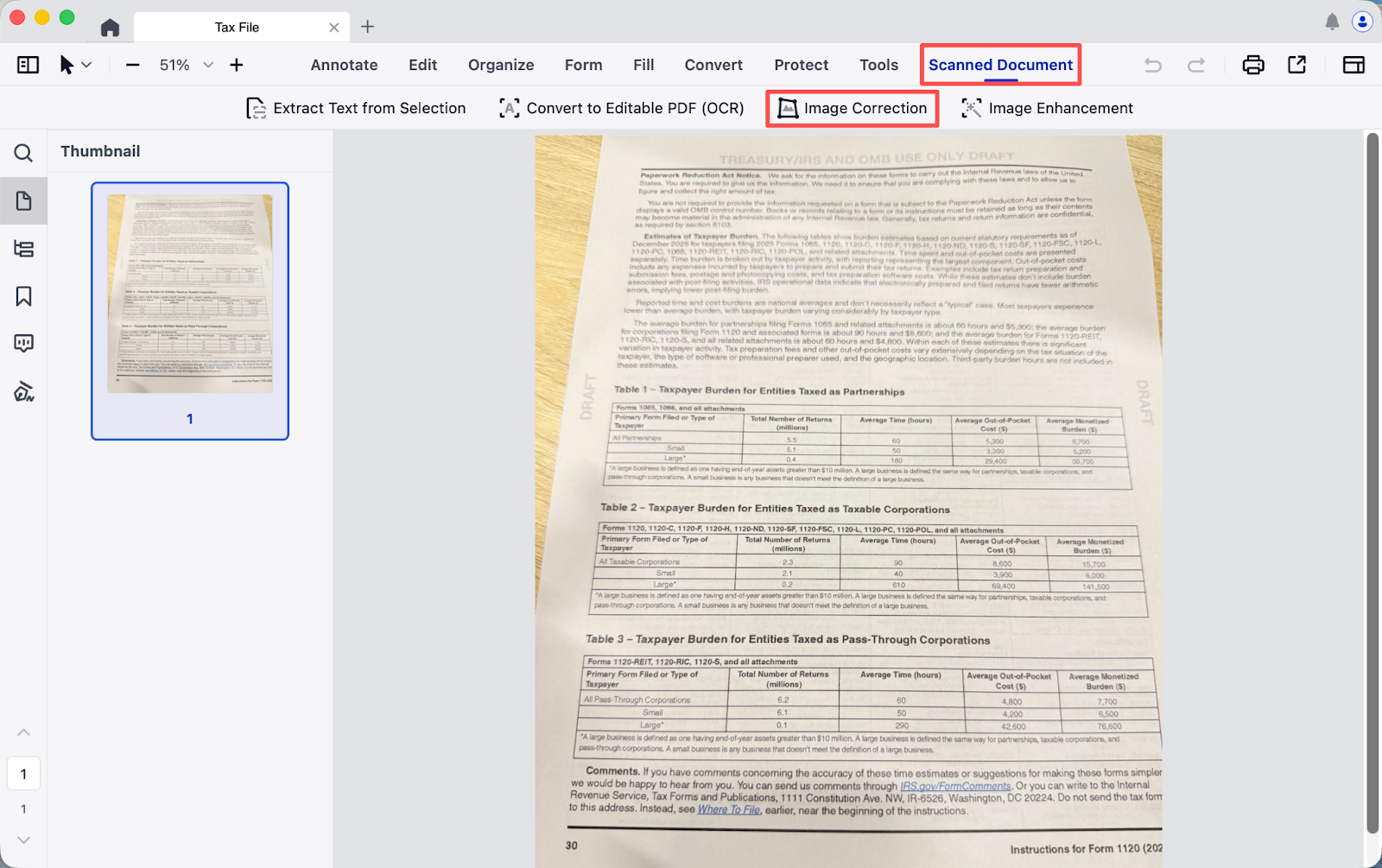
3. Download the OCR component;
4. Manually adjust pages that are tilted or distorted;
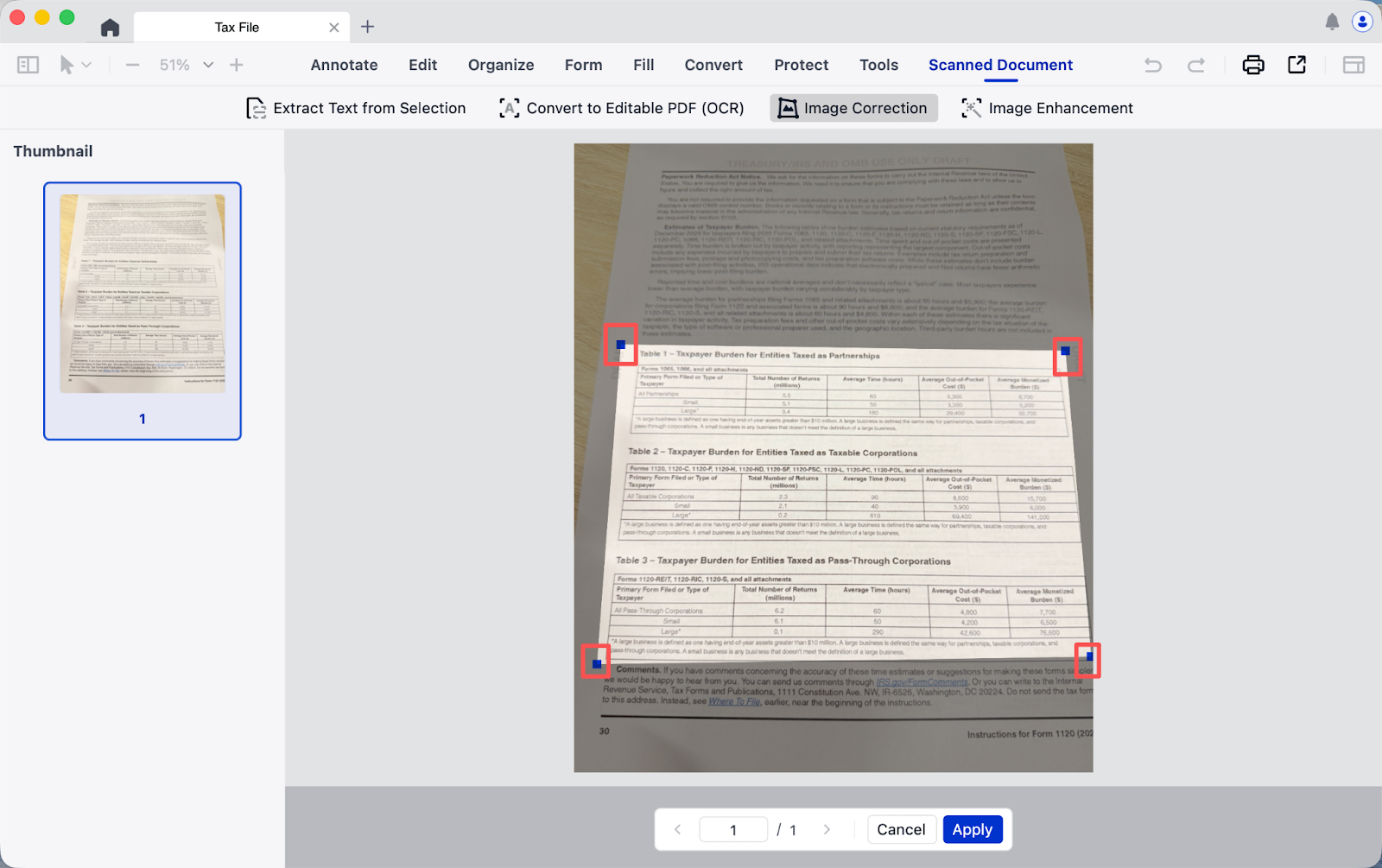
5. Obtain a neatly formatted page after adjustments.
Image Enhancement
1. Open the scanned PDF in LynxPDF;
2. Go to Scanned Document in the Toolbar, then click Image Enhancement;
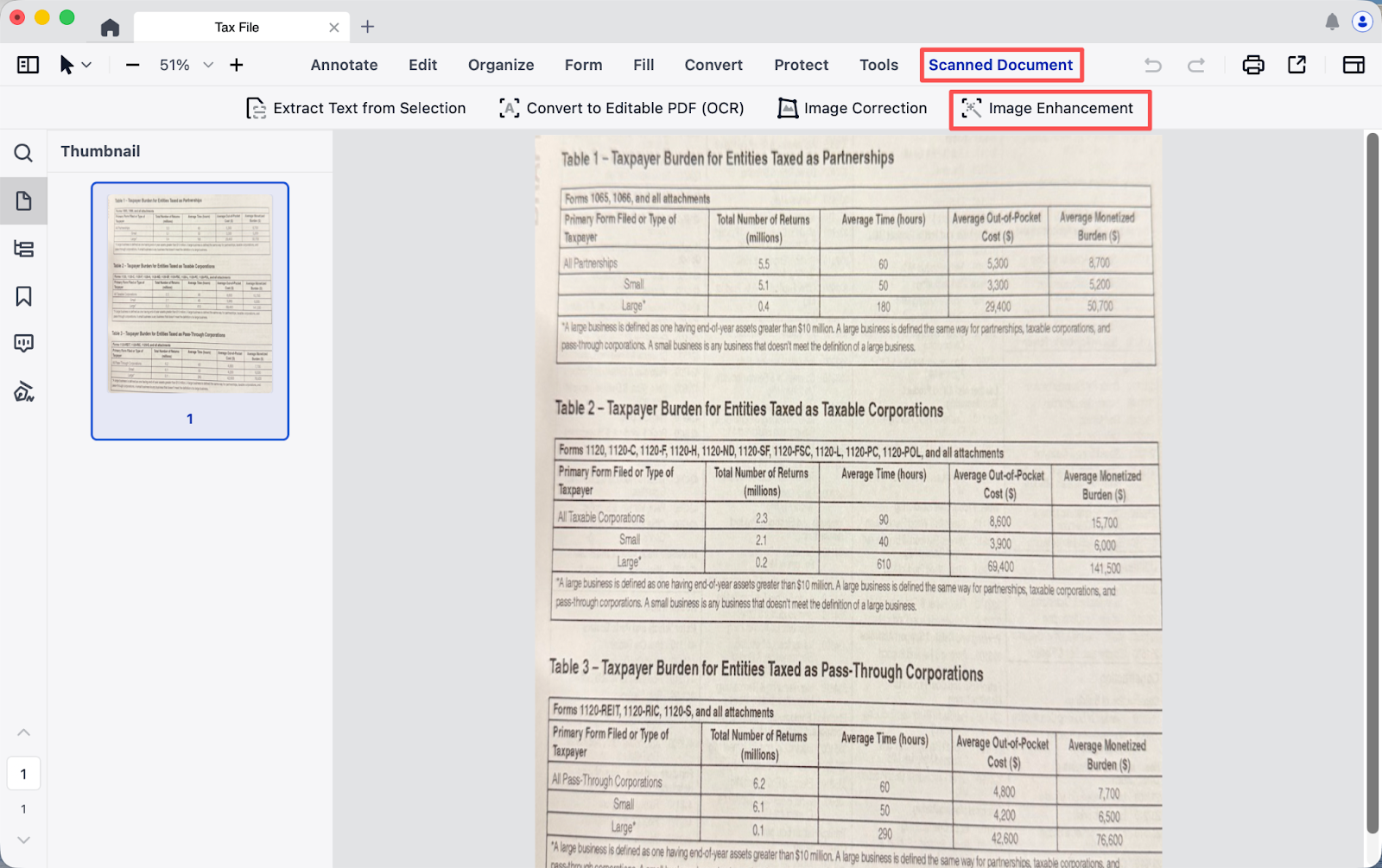
3. Download the OCR component;
4. Automatic image enhancement;
5. Obtain a neatly formatted page after enhancement.
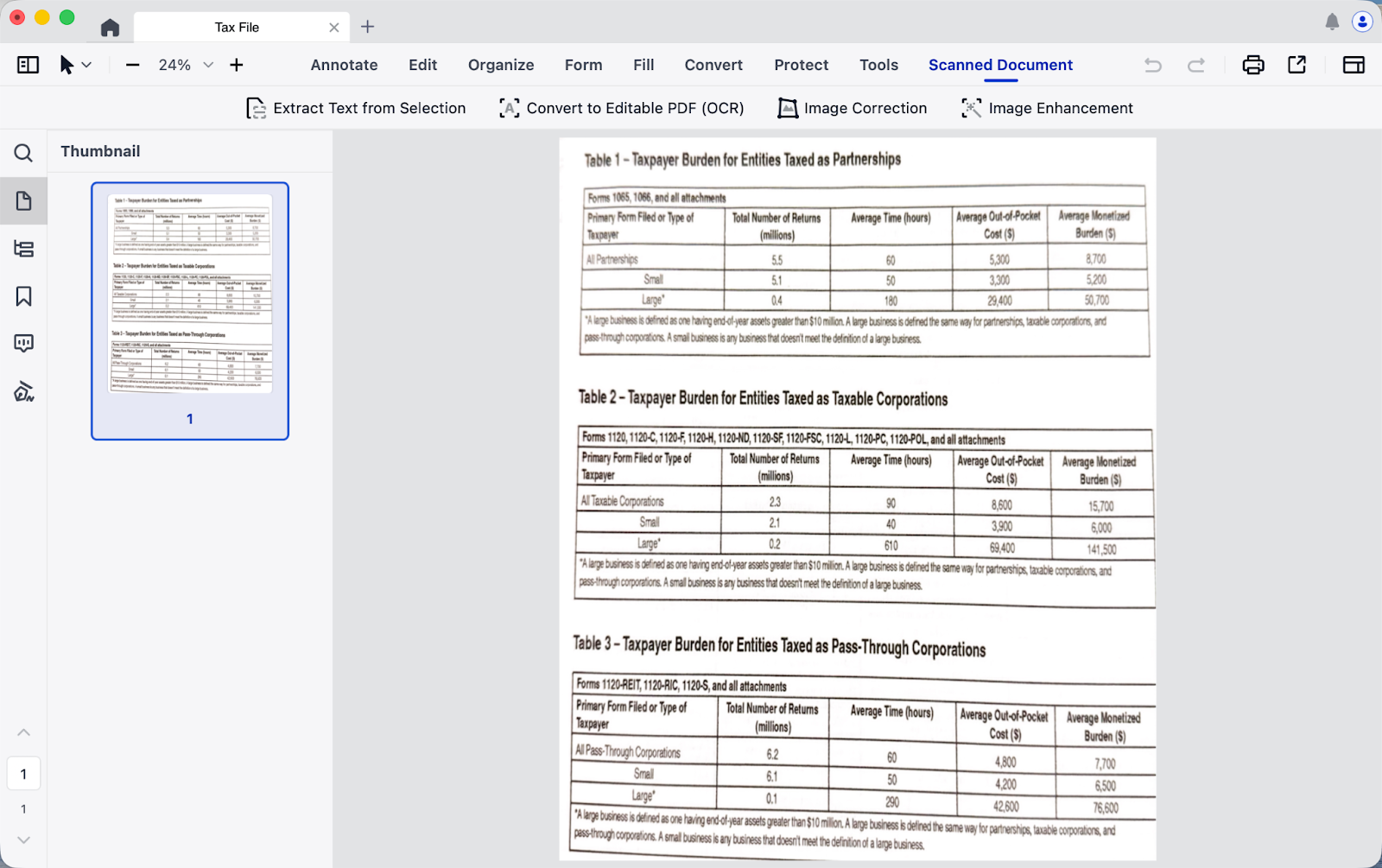
Download LynxPDF and improve OCR accuracy with image correction and enhancement.

