

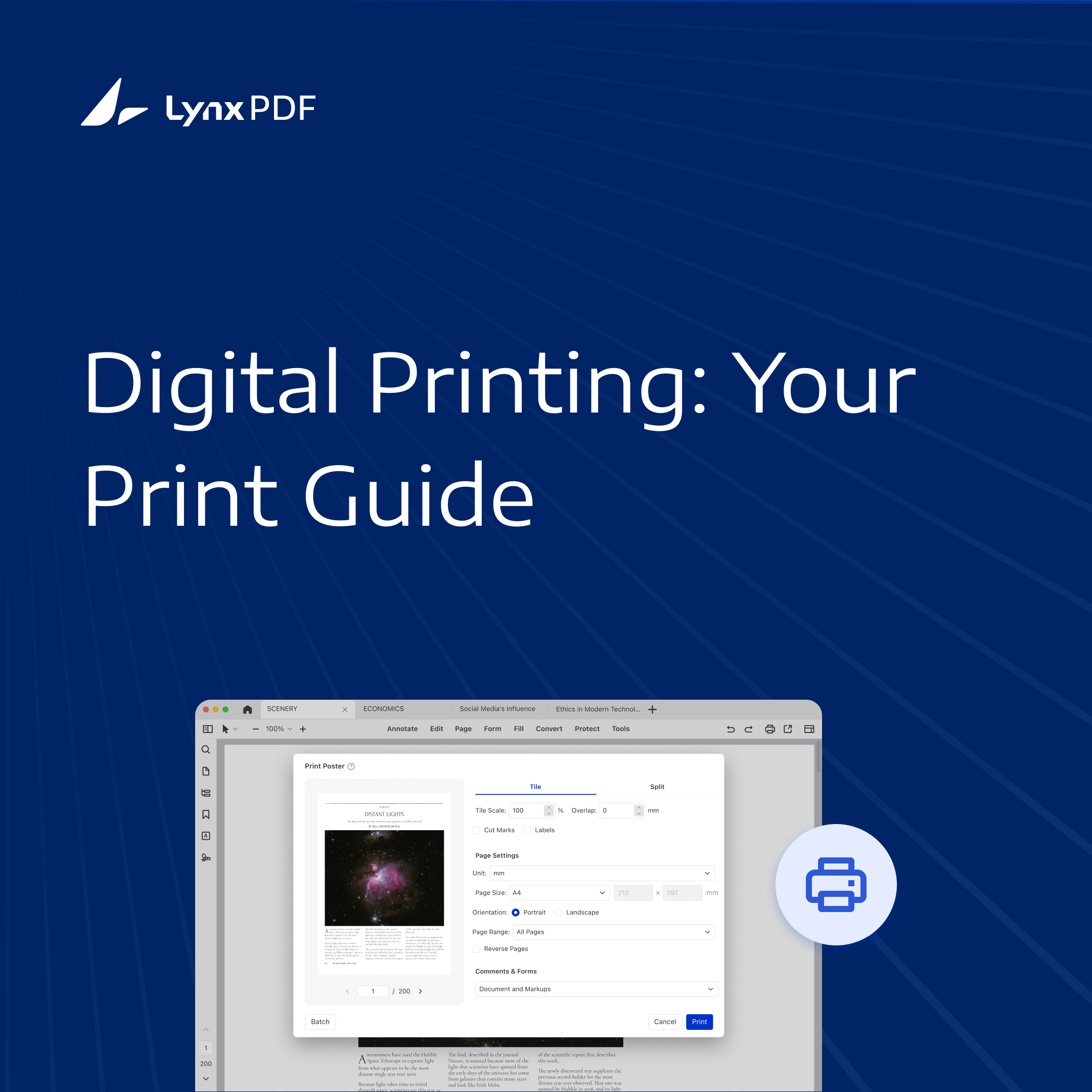
In a business setting, the ability to print to PDF is crucial. It integrates seamlessly into enterprise workflows, facilitating document sharing, archiving, and compliance processes, ensuring that documents look the same on all computers.


Understanding Print to PDF and Its Applications
The Print to PDF function acts as a virtual printer within various operating systems and software. When you choose to print a document to PDF, the system generates a PDF file as if it were printing the document on paper. This feature is natively supported in operating systems like Windows, macOS, and Linux, each incorporating it slightly differently but maintaining the same core functionality.
While exporting or saving a document as a PDF is a direct conversion from the original software format to PDF, printing to PDF simulates the printing process. This method captures the document as it would appear if printed physically, ensuring all visual elements are preserved in the final PDF, which might not be the case when you simply export or save.
Common Enterprise Use Cases
Documentation Needs: Enterprises frequently use the PDF format for generating official documents such as reports, contracts, and invoices. The consistency and reliability of PDF ensure that these documents maintain their formatting when shared or archived.
Security and Compliance: Printing to PDF creates a copy for sharing, such as policy guidelines or company announcements. Apply PDF passwords and permissions separately when access or editing restrictions are needed. PDFs can also be encrypted with passwords for additional security, ensuring that only authorized viewers can access sensitive information.
 Jane Doe
Preparing to Print to PDF
Before diving into printing documents as PDFs, it's crucial to ensure that your setup is optimized for the best possible output. This includes having the right tools at your disposal and configuring your system settings to maintain document integrity and appearance.
Ensuring You Have the Right Tools
Built-in Print to PDF Function: Before proceeding, check if your operating system includes a built-in "Print to PDF" feature. Most modern operating systems like Windows 10 and macOS provide this option directly from the print dialog. This functionality allows you to convert documents to PDF format without needing additional software.
Installing LynxPDF: After creating a PDF with system print tools, use LynxPDF for password protection, document merging, and annotations.
Configuring Printer Settings
Adjusting Default Printer Settings: To ensure the highest quality PDF output, adjust your default printer settings in your source application’s system print dialog. This includes setting the 'Print to PDF' option as the default printer to avoid switching settings frequently.
Selecting Paper Size, Orientation, and Resolution: Choose the appropriate paper size (e.g., A4, Letter), orientation (portrait or landscape), and resolution based on the document’s requirements. Higher resolution is crucial for documents containing detailed graphics or fine print.
Verifying Document Formatting
Consistency in Fonts, Images, and Layouts: Before printing to PDF, make sure that all fonts are embedded correctly, images are in high resolution, and the document layout appears as intended. This step is vital to prevent any shifts in formatting or readability issues in the final PDF.
Checking Page Breaks and Spacing: Carefully review the document for any unintended page breaks or spacing issues that could affect the flow or presentation of information. Adjust the formatting in the original document before printing to PDF to ensure that the final output meets your expectations.
Method 1: Using Built-in Print to PDF
Both Windows and macOS offer built-in solutions for converting documents into PDF files, making it easy for users to create high-quality PDFs directly from any application that supports printing.
Overview of Built-in System Features
-
Windows: Microsoft Print to PDF
Windows includes the Microsoft Print to PDF virtual printer. It's designed to create PDFs from any document within any application that has printing capabilities. This feature is integrated seamlessly into the operating system, ensuring easy access and simplicity in converting documents to PDF format. -
macOS: Print to PDF via Preview
On macOS, the PDF printing capability is integrated into the Preview application and other document viewing software. Users can convert documents to PDFs using the print function, which is robust and highly compatible with various file formats, providing flexible document management.
Step-by-Step Guide
-
Opening the Document
Open the document you wish to convert to PDF in any application that supports printing. This could be a word processor like Microsoft Word, a spreadsheet program like Excel, or any other software that allows document editing and viewing. -
Selecting "Print to PDF" as the Printer
Navigate to the 'File' menu and select 'Print,' or use the Ctrl+P (Windows) or Cmd+P (macOS) shortcut. In the printer selection dropdown, choose 'Microsoft Print to PDF' on Windows or the 'Save as PDF' option on macOS.
-
Adjusting Print Settings and Saving the Output File
Before finalizing the print, adjust necessary settings such as orientation, paper size, and resolution. On Windows, after clicking 'Print,' a window will prompt you to choose a location to save the PDF.
On macOS, the system will provide options to add additional metadata such as title, author, and subject before saving. Choose your desired settings and location, then save the file to convert your document to a PDF.
Method 2: Printing to PDF with system print tools
LynxPDF can be used to review and protect PDFs after they are created by a system print or export workflow.
Why Use LynxPDF After System Printing?
PDF Review and Protection:
Open the resulting PDF in LynxPDF to check the layout and apply passwords or watermarks when needed.
Step-by-Step Guide
Creating the PDF:
In the source application, use its supported print or export workflow to create a PDF.
Opening the PDF in LynxPDF:
Open the resulting PDF in LynxPDF for review.
Reviewing and Protecting the PDF:
Check the page layout and content, then apply any required password, permission, or watermark settings.
Saving the Final PDF:
Save the PDF to your preferred location and reopen it to check the result before distribution.
 Jan Stiedemann
Download LynxPDF
Ready to get started with our PDF editor? Download the latest version of LynxPDF for Windows or Mac down below:

 Admin Console
 Custom Business Stamps
 System Integration
 Digital Signatures
Best Practices and Tips
When working with PDFs, especially in a business context where accuracy and efficiency are paramount, there are several best practices and tips that can help streamline processes and ensure high-quality outputs. Here are some key strategies:
-
Standardize PDF Settings Across the Organization:
Implement standardized settings for creating PDFs to maintain consistency across all documents. This includes predefined resolution, font embedding, color settings, and security measures such as encryption and watermarking. Ensuring everyone uses these settings can prevent discrepancies and maintain brand integrity. -
Utilize Templates and Forms:
For frequently used document types like reports, invoices, or forms, create and use templates. This not only speeds up the document creation process but also ensures that all necessary information is included and uniformly formatted, reducing the likelihood of errors. -
Maintain Regular Software Updates:
Keep your PDF software, whether it’s LynxPDF or another tool, up to date. Software updates often include important security patches, enhancements, and new features that can improve performance and compatibility. -
Educate Employees on PDF Tools and Processes:
Provide training for your staff on how to use PDF tools effectively, especially focusing on features like batch processing, editing, and secure sharing. Knowledgeable employees are more likely to use PDF tools efficiently, which can enhance productivity. -
Optimize PDFs for Web and Mobile Viewing:
When preparing documents that will be viewed on mobile devices or online, optimize PDFs for these platforms. This includes reducing file size for quick loading times and ensuring documents are readable on smaller screens. -
Implement Access Controls and Permissions:
For sensitive documents, use the advanced security features of your PDF software to control who can view, edit, print, or share the PDFs. Setting permissions ensures that confidential information remains protected. -
Audit and Manage PDF Archives Regularly:
Keep your PDF archives organized and conduct regular audits to ensure that all documents are correctly indexed and stored. This helps in maintaining compliance with industry regulations and makes retrieval faster and more efficient. -
Enable Collaboration Features:
Leverage features that allow for multiple users to review and comment on documents simultaneously. Tools like annotations, comments, and track changes can facilitate effective collaboration among team members.
By implementing these best practices and tips, organizations can make the most of their PDF management tools, improving both productivity and document security.
FAQ
How can I reduce the file size of a PDF?
To reduce the size of a PDF, consider compressing images, removing unnecessary fonts and elements, and using PDF optimization tools available in PDF editing software. These tools can significantly reduce the file size without compromising too much on quality.
What should I do if my PDF isn’t printing correctly?
Check the print settings in your PDF software and ensure that the correct printer is selected. Adjust the print preferences such as orientation, paper size, and print quality. Also, make sure that the document's formatting aligns with your printer's capabilities.
Can PDFs be converted back to other formats?
Yes, PDFs can be converted back to other formats such as Word, Excel, or image files using PDF conversion tools. This feature is useful when you need to edit data originally in PDF form or use the information in a different software environment.
Are there any legal considerations with using PDFs?
When using PDFs for legal documents, ensure that the document is compliant with legal standards such as being searchable, archivable, and accessible. Also, consider using features like timestamps and digital signatures to provide additional legal authenticity and traceability.


