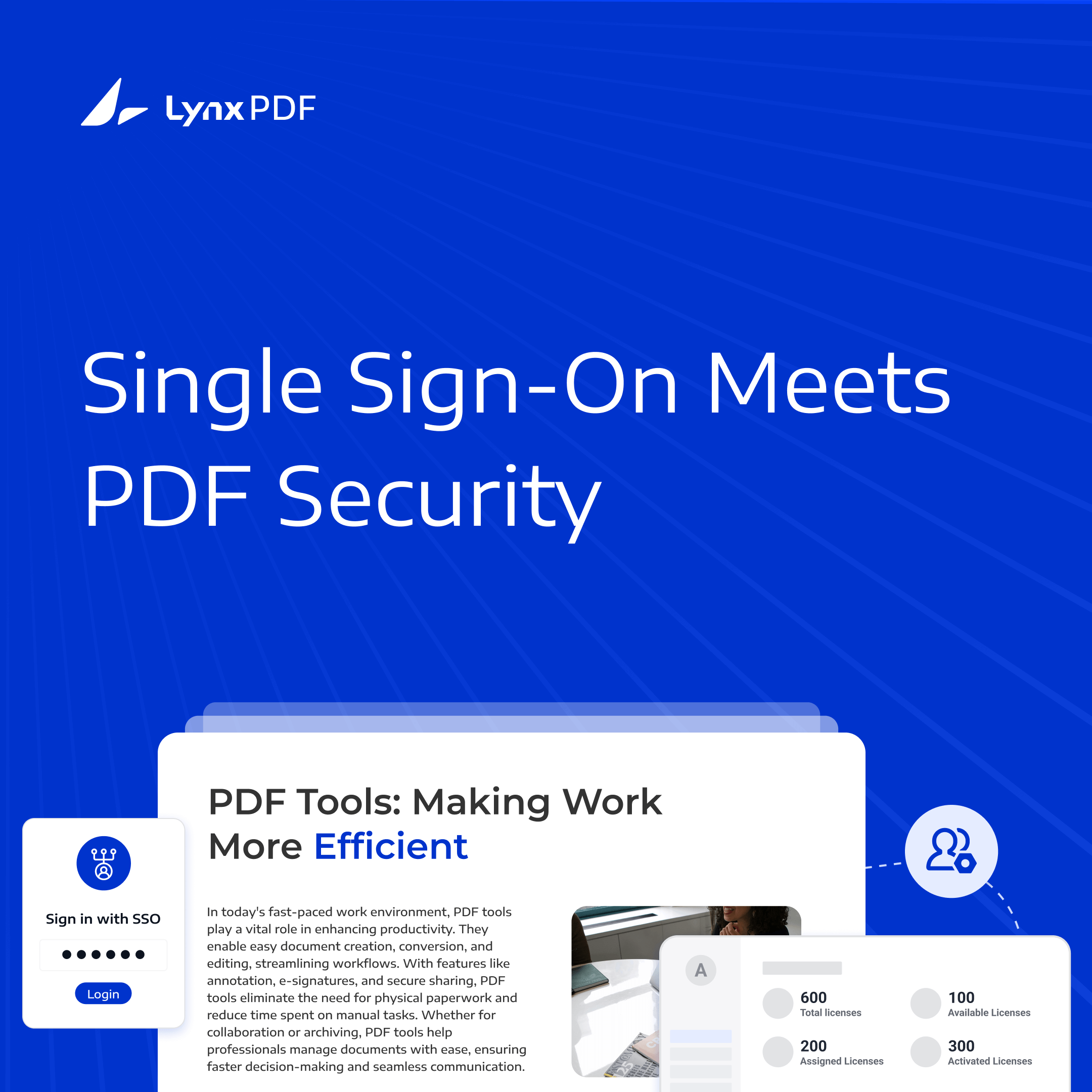
With digital documents now storing much valuable information, access to the files containing such information—like those in PDFs—needs securing. To smooth authentication across platforms, organizations increasingly embrace SSO solutions that bring security and user convenience.
Integrating SSO with PDF access can simplify sign-in and reduce repeated logins. Application access, Web document-sharing permissions, and protection applied to a PDF are configured separately.



What is SSO and Why Use it for PDF Access?
Single Sign-On (SSO) is an authentication method that allows users to log in once and gain access to multiple applications without re-entering credentials.
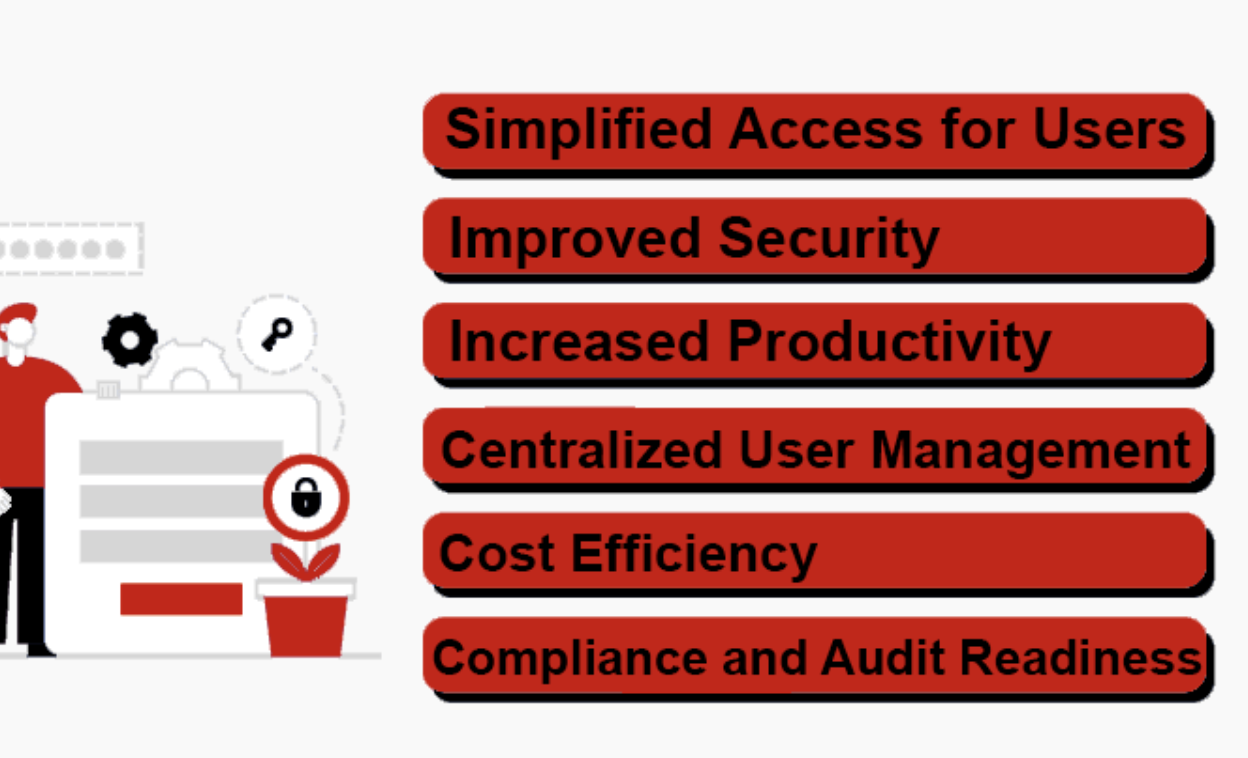
Through SSO, users can navigate between various platforms or resources seamlessly, leveraging one set of credentials, managed by a central identity provider such as Azure AD or Google Identity. SSO simplifies login experiences, reduces password fatigue, and provides a secure, centralized approach to managing user access.
Benefits of SSO for PDF Access:
-
Enhanced Security: SSO minimizes the risk of unauthorized access to sensitive PDF files by controlling authentication through a central, secure point. By using a single, strong password, along with additional security measures like Multi-Factor Authentication (MFA), organizations can protect their data more effectively.
-
Improved User Experience: Employees can use their organization's identity account to sign in to connected applications without repeatedly entering credentials, making daily access simpler and reducing the need to manage separate passwords.
-
Centralized Access Control: With SSO, administrators can manage LynxPDF application access through Admin Console. Configure Web sharing roles and PDF action permissions separately for shared documents.
-
Reduced IT Overhead: Fewer login issues mean fewer password resets and reduced support for access-related problems, freeing up IT resources for other priorities.
Integrating SSO with PDF access is a strategic move that combines ease of use with robust security, making it an ideal solution for businesses handling sensitive information within digital documents.
How SSO Integration Secures PDF Documents
Integrating Single Sign-On (SSO) with PDF access adds a powerful layer of security by centralizing and streamlining access control. Here’s how SSO secures PDF documents:
Discover the leading 10 enterprise license management software solutions designed for efficiency and scalability.
-
Centralized Authentication:
- SSO uses a trusted identity provider to verify users with one set of secure credentials. By centralizing authentication, only authorized users with verified identities can access protected PDFs. This eliminates the need for individual logins, reducing risks associated with weak or reused passwords.
- SSO uses a trusted identity provider to verify users with one set of secure credentials. By centralizing authentication, only authorized users with verified identities can access protected PDFs. This eliminates the need for individual logins, reducing risks associated with weak or reused passwords.
-
Access Control Based on User Roles:
- Manage LynxPDF product access and team membership in the Admin Console. For shared PDFs, choose the available sharing permissions; apply appropriate file protection settings to each PDF separately. SSO itself does not map IdP roles to individual PDF files.
- Manage LynxPDF product access and team membership in the Admin Console. For shared PDFs, choose the available sharing permissions; apply appropriate file protection settings to each PDF separately. SSO itself does not map IdP roles to individual PDF files.
-
Multi-Factor Authentication (MFA):
- Integrating MFA with SSO strengthens security by requiring a second verification step, such as a mobile OTP or biometric scan. This additional layer ensures that even if an SSO password is compromised, unauthorized users cannot access restricted PDF documents without the secondary authentication factor.
- Integrating MFA with SSO strengthens security by requiring a second verification step, such as a mobile OTP or biometric scan. This additional layer ensures that even if an SSO password is compromised, unauthorized users cannot access restricted PDF documents without the secondary authentication factor.
-
Single Access Point Monitoring and Auditing:
- SSO sign-in events are recorded in the identity system. Use eSign audit reports for signing activity, and define separately where other document actions are logged.
- SSO sign-in events are recorded in the identity system. Use eSign audit reports for signing activity, and define separately where other document actions are logged.
-
Reduced Vulnerability to Phishing Attacks:
- By using SSO, users only need to remember one set of credentials, reducing the likelihood of phishing attacks targeting multiple accounts. This containment minimizes the risk of credential compromise, safeguarding the PDF access portal.
- By using SSO, users only need to remember one set of credentials, reducing the likelihood of phishing attacks targeting multiple accounts. This containment minimizes the risk of credential compromise, safeguarding the PDF access portal.
-
End-to-End Encryption:
- The selected identity or sharing service provides the SSO authentication and transport controls. Apply supported PDF encryption and permissions separately to protect the document, and review the transport controls provided by that service.

SSO integration not only streamlines secure access but also provides a controlled environment to protect sensitive PDFs. By limiting access, enforcing strong authentication, and enabling centralized control, organizations can trust that their critical documents are accessible only to verified, authorized users.
Discover the best strategies for selecting the right license management system for your business.