

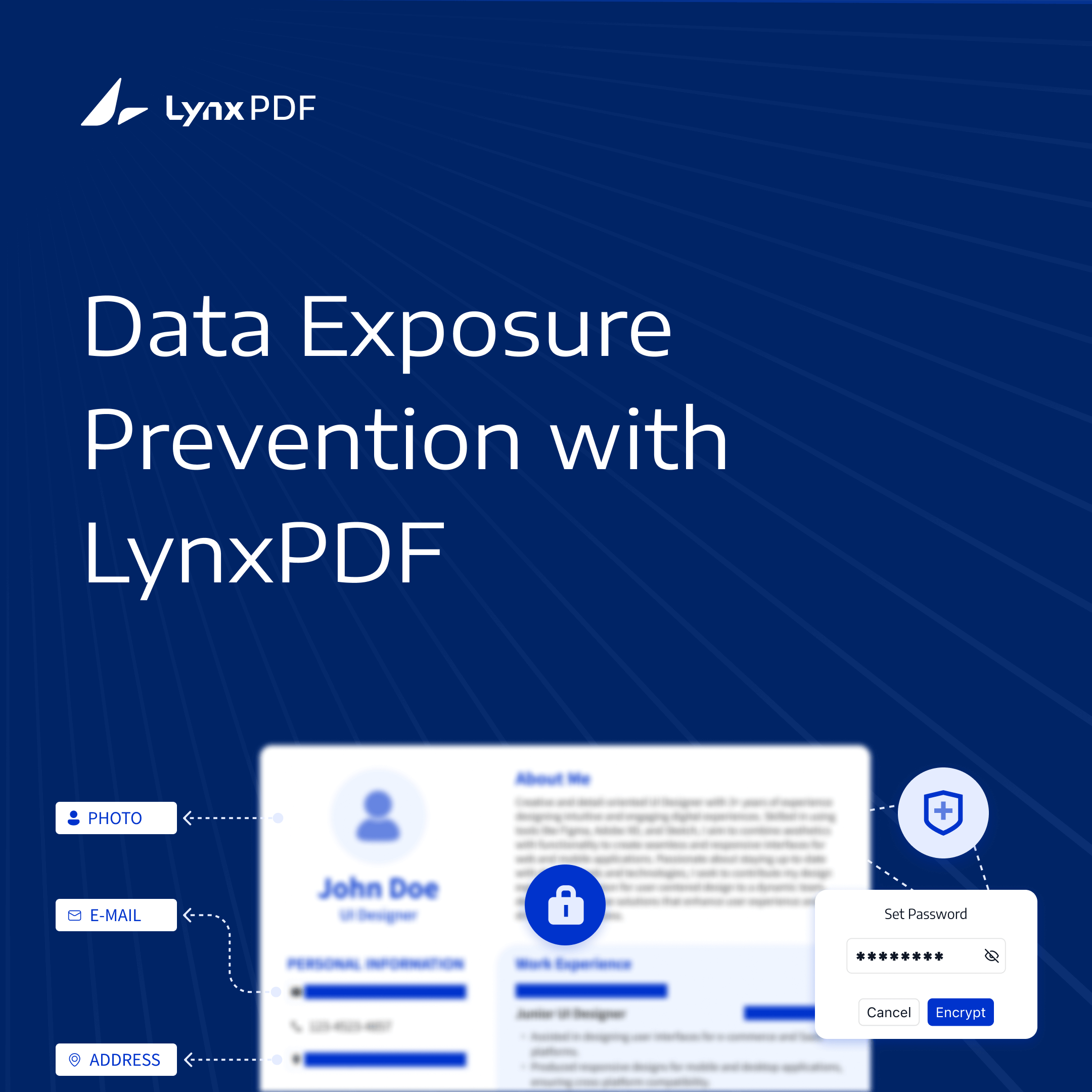
In the digital age, sensitive data exposure is a serious threat that can lead to financial loss, reputational damage, and legal issues. Protecting your documents during sharing and editing is more important than ever.



LynxPDF provides powerful tools like encryption and redaction to help safeguard your data.
Common Risks of Sensitive Data Exposure
Sensitive data exposure often occurs due to overlooked mistakes in document management. Even minor lapses can lead to significant security breaches. Below are the most common risks that put your documents in danger:
Sharing Files Without Encryption or Password Protection
Unprotected file transfers leave your documents vulnerable to interception. Without encryption or a password, sensitive files can easily fall into the wrong hands.
Leaving Hidden Metadata or Unredacted Sensitive Information
Many PDF files contain hidden metadata, including revision history, author details, or comments. This information can unintentionally expose sensitive details. Failing to redact confidential text further increases the risk of data leaks.
Unauthorized Access Due to Weak Security Controls
Insufficient access controls, like the lack of role-based permissions or secure storage allow unauthorized individuals to view, edit, or share sensitive files. This opens the door to security breaches that could otherwise be prevented.
Understanding these risks is the first step in keeping your data safe. By using LynxPDF, you can effectively prevent these vulnerabilities.
How LynxPDF Protects Your Sensitive Data
Protecting sensitive data is essential to avoid unauthorized access or accidental exposure. LynxPDF equips users with practical tools that ensure confidentiality while keeping documents secure throughout editing, sharing, and storage. Here's how LynxPDF helps protect your information.
Secure Document Access and Permissions
LynxPDF allows you to control how others interact with your documents. Set permissions to restrict printing, editing, or copying and ensure that only authorized users can access or modify files.

These security measures ensure your files are protected whether shared offline or in a controlled environment.
On-Premise Deployment of Management Services
For organizations that need to host administration services within their infrastructure, LynxPDF offers on-premise deployment of the Admin Console management service. Your IT team can manage this service on your own servers.

Step-by-Step Guide to Secure PDFs with LynxPDF
Securing your documents doesn’t have to be complicated. With LynxPDF, you can password-protect your PDFs in just a few simple steps, ensuring only authorized users can access or edit your files.

 Admin Console
 Custom Business Stamps
 System Integration
 Digital Signatures
Take control of your files, protect sensitive information, and review your document protection settings before sharing.
Step 1: Open Your PDF Document
Launch LynxPDF and click on “Open Document” to import your file. Alternatively, you can drag and drop the PDF directly into the workspace.
Step 2: Navigate to Security Settings
Go to Protect > Set Passwords to open the password configuration tool.
Step 3: Configure Your Password and Permissions
- Create a strong document-open password to restrict opening the document.
- Set a permission password and configure editing, printing, or copying permissions separately.
- Confirm your password settings.
Step 4: Save and Encrypt Your File
Apply the protection settings and save the PDF. Reopen it to check the password and permission settings.
With these simple steps, you can ensure your documents are secure before sharing or storing them.
Best Practices to Avoid Data Exposure with LynxPDF
Protecting sensitive data is crucial to prevent unauthorized access or accidental leaks. With LynxPDF, you can easily safeguard your documents by following these steps:
- Use Password Protection: Set strong passwords to limit access to your PDF documents. You can establish separate passwords for opening the file and for making changes, ensuring that only authorized users can interact with your content.
- Redact Sensitive Information: Permanently remove sensitive content, such as personal details, financial data, or confidential text, using the redaction tools. Redacted information becomes unrecoverable, preventing accidental exposure.
- Review Hidden Information: Hidden metadata, comments, and attachments can reveal sensitive details. Check this information before sharing files.
- Limit Permissions: Set permissions to control how others interact with your document. Restrict actions like copying, printing, or editing to prevent unauthorized changes or misuse.
- Encrypt and Share Securely: Always encrypt files before sharing them. Use secure channels or password-protected options to ensure documents are delivered safely and cannot be accessed by unintended recipients.
- Store Documents Safely: Save your files in protected folders or secure systems. Implement access controls to ensure only authorized team members can view, modify, or distribute sensitive documents.
LynxPDF provides tools to protect sensitive information and streamline document management. From password protection to redaction, its intuitive tools help you take control of your document security.


