

The LynxPDF is designed to meet the unique needs of enterprise-level operations. In fast-paced environments where efficiency, accuracy, and scalability are key, having the right tools for document management is essential.


Key Features of LynxPDF
In today’s fast-paced business environment, where precision and collaboration are crucial, this tool simplifies PDF creation, editing, and management at scale. Here are some key features of LynxPDF:
PDF Creation and Editing Tools
- Tools for Text, Image, and Layout Customization: Edit text, images, and layouts seamlessly to create professional documents that meet your exact requirements.
- Support for Batch Processing: Save time by managing multiple documents simultaneously, with tasks such as conversion, OCR, and watermarking.
Advanced Security Features
- Password Protection and Encryption: Keep sensitive information secure with robust encryption and password-protected files.
- Digital Signature Integration: Simplify approval workflows by embedding digital signatures directly into documents.
Collaboration Tools
- Annotation and Commenting Features: Enable teams to provide feedback through annotations, highlights, and comments within the PDF.
- Real-Time Collaboration Options: Facilitate teamwork by allowing multiple users to review documents and exchange annotations and comments in real time.
Cloud Storage and Team Sharing
- Cloud Storage and Team-Sharing Functionalities: Access, share, and collaborate on documents from anywhere through secure cloud-based solutions.
 Jane Doe
Preparation for Using LynxPDF
Getting started with the LynxPDF is a straightforward process that ensures users can quickly unlock its full potential. Here is a step-by-step guide to help you prepare for using LynxPDF effectively.
Downloading and Installing the Software
-
Selecting the Appropriate Version for Your Operating System
Visit the LynxPDF website and choose the correct version based on your operating system (Windows or macOS). Ensure compatibility with your system requirements to avoid installation issues.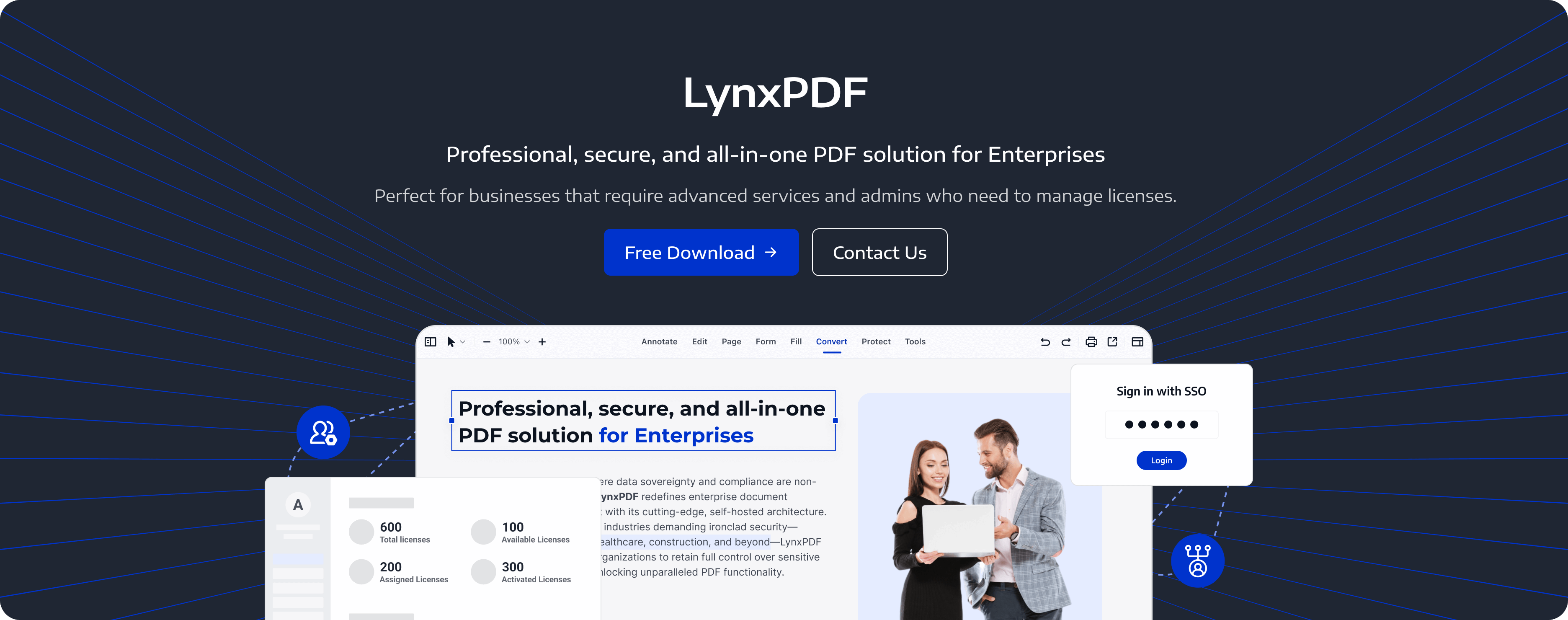
-
Step-by-Step Installation Process
- Download the installation file from the official website.
- Open the installer and follow the on-screen prompts.
- Choose your preferred installation location and optional components.
- Complete the process and launch the software.
Setting Up Your Workspace
-
Configuring User Preferences
Adjust default settings to match your workflow, such as language preferences, default save locations, and theme options. -
Exploring the Interface and Available Tools
Familiarize yourself with the toolbar, navigation panels, and editing features. Review the quick-start guide or help menu for tips on maximizing efficiency.
Ensuring Document Compatibility
- Supported File Formats for Import and Export
LynxPDF supports importing and exporting a variety of file formats, including PDF, Word, Excel, PowerPoint, and image files like PNG and JPEG. Verify that your document formats are supported to ensure smooth operation.
How to Generate PDFs
With LynxPDF, generating high-quality PDFs becomes a streamlined and efficient process, helping businesses save time and maintain professionalism across all documents.
Step 1: Launch LynxPDF
Open the software and log in to your account if required. Ensure you have all necessary files or content ready for the PDF creation process.
Step 2: Start a New PDF or Import an Existing File
- Creating a New PDF: Create a blank PDF to start from scratch.
- Importing an Existing File: Use file-to-PDF conversion to create a PDF from a supported Word, Excel, or image file.
Step 3: Customize the PDF Content
- Use the text tools to add or edit text within your document.
- Insert images, charts, or graphics as needed.
- Adjust layout settings, such as margins, alignment, and spacing, to meet specific formatting requirements.

Step 4: Apply Advanced Features
- Add password protection or encryption for security.
- Insert digital signatures if approval or authentication is needed.
- Include interactive elements like hyperlinks, bookmarks, or form fields, if required.

Step 5: Review and Proofread
Use the preview mode to review the document and ensure accuracy. Double-check text, images, and formatting for any errors or inconsistencies.
Step 6: Export or Save as PDF
- Click on the "Export" or "Save As" button.
- Choose "PDF" as the output format.
- Select additional export settings, such as file size optimization or compatibility options for older PDF versions.
Step 7: Save or Share
- Save the PDF to your local drive or upload it to LynxPDF for Web.
- Use the built-in sharing options to send the file to team members or collaborators securely.
By following these steps, you can generate high-quality PDFs efficiently with LynxPDF.
Advanced Features for Enterprise Use
Let`s see how can you generate PDFs efficiently while taking advantage of the editor’s enterprise-level capabilities.
1. Batch Processing for High-Volume Workflows
LynxPDF allows enterprises to handle large volumes of documents efficiently. Batch processing enables users to convert, run OCR on, or watermark multiple PDFs, saving time and reducing manual effort.
2. Advanced Security Options
- PDF Access Controls: Set document-open passwords and PDF permissions to restrict opening, printing, or copying.
- Encryption Standards: Apply PDF encryption to help protect confidential document content.
3. Batch Processing Tools
Use batch tools to automate repetitive tasks, such as applying watermarks or converting multiple files.
4. Collaboration Features for Distributed Teams
- Shared Review: Multiple users can review documents and exchange annotations and comments in real time, helping teams complete shared projects.
- Commenting and Annotation: Enable clear communication with built-in annotation tools that support feedback and revision tracking.
5. Customizable Templates
Enterprises can prepare their own branded PDF templates and open copies in LynxPDF for editing, including invoices, contracts, and reports.
6. High-Performance File Compression
Reduce file sizes while checking output quality, ensuring faster sharing and storage, particularly for large files like image-heavy PDFs.
7. Compliance and Accessibility Features
- PDF/A Support: Generate archival-quality PDFs compliant with ISO standards for long-term preservation.
- Accessibility Tools: Use PDF/UA conversion to support document accessibility, then check the resulting structure and reading order.
8. Multilingual Support
For global enterprises, LynxPDF offers multilingual support, enabling teams across regions to work in their preferred languages.
These advanced features make LynxPDF a comprehensive tool for enterprise-level operations, supporting scalability, efficiency, and security across diverse business needs.
Collaboration and Sharing
LynxPDF offers powerful tools that make sharing, reviewing, and distributing PDFs straightforward, ensuring all stakeholders remain on the same page.
Sharing PDFs Across Teams
-
Using LynxPDF Cloud Storage
LynxPDF provides cloud storage and sharing tools. This allows teams to save and share PDFs in a centralized location for document review. -
Real-Time Collaboration and Feedback Features
Collaborate effectively with built-in tools that support real-time annotations and comments. Team members can add annotations, suggest changes, and provide feedback directly within the PDF, minimizing the need for back-and-forth emails and streamlining the revision process.
Printing and Distribution
-
Configuring Print Settings for High-Quality Output
Adjust print settings to ensure professional-grade output. Options include selecting paper size, adjusting resolution, and optimizing color settings for specific printers. Advanced users can also apply print marks or settings for double-sided printing. -
Sharing Options via Email or Secure Links
Share PDFs easily by generating secure links. With encryption and password-protection options, files can be distributed while maintaining confidentiality and security.
Best Practices and Tips
To fully leverage its capabilities, understanding key features and best practices is essential.
1. Leverage Keyboard Shortcuts
Save time by learning and using keyboard shortcuts for common actions like saving, undoing changes, or switching between tools. This boosts efficiency during repetitive tasks.
2. Create Custom Templates
Prepare your own PDF templates for frequently used documents, such as contracts, invoices, or reports, and edit a copy in LynxPDF. This ensures consistency across all files and reduces preparation time.
3. Use Batch Processing for Large Projects
Take advantage of the batch processing feature to convert or watermark multiple documents at once. This is particularly useful for enterprise-level workflows involving high document volumes.
4. Organize Documents for Easy Access
Use clear file names and your organization’s storage folders to organize documents before opening them in LynxPDF. This makes it easier to locate and manage specific documents.
5. Optimize PDF Sizes
Use the file compression feature to reduce PDF sizes for faster sharing and storage while checking output quality, especially for image-heavy documents.
6. Apply Security Features Proactively
For sensitive documents, enable password protection, encryption, or digital signatures during creation to ensure data security from the start.
7. Take Advantage of Collaboration Tools
Utilize real-time annotations and comments to streamline teamwork. Encourage team members to provide feedback directly within the document for faster revisions.
8. Customize the Interface for Your Workflow
Adjust toolbars, menus, and workspace layouts to prioritize features you use most often. This helps streamline navigation and enhances productivity.
9. Regularly Update the Software
Keep LynxPDF updated to access the latest features, security patches, and performance improvements.
 Jan Stiedemann
Download LynxPDF
Ready to get started with our PDF editor? Download the latest version of LynxPDF for Windows or Mac down below:

 Admin Console
 Custom Business Stamps
 System Integration
 Digital Signatures
FAQ
Is LynxPDF secure for sensitive documents?
Absolutely. LynxPDF offers robust security features such as password protection, encryption, digital signatures, and PDF permissions to help protect your documents.
Can I collaborate with my team using LynxPDF?
Yes, LynxPDF for Web includes real-time annotation and commenting features. These make it easy for teams to work together on documents.
How do I compress large PDFs?
You can use the built-in compression tool to reduce file sizes and review the output quality. This feature is especially useful for sharing large, image-heavy PDFs.
Is it possible to create fillable forms in LynxPDF?
Yes, you can design interactive, fillable forms by adding form fields like text boxes, checkboxes, and dropdown menus directly into your PDF.


