

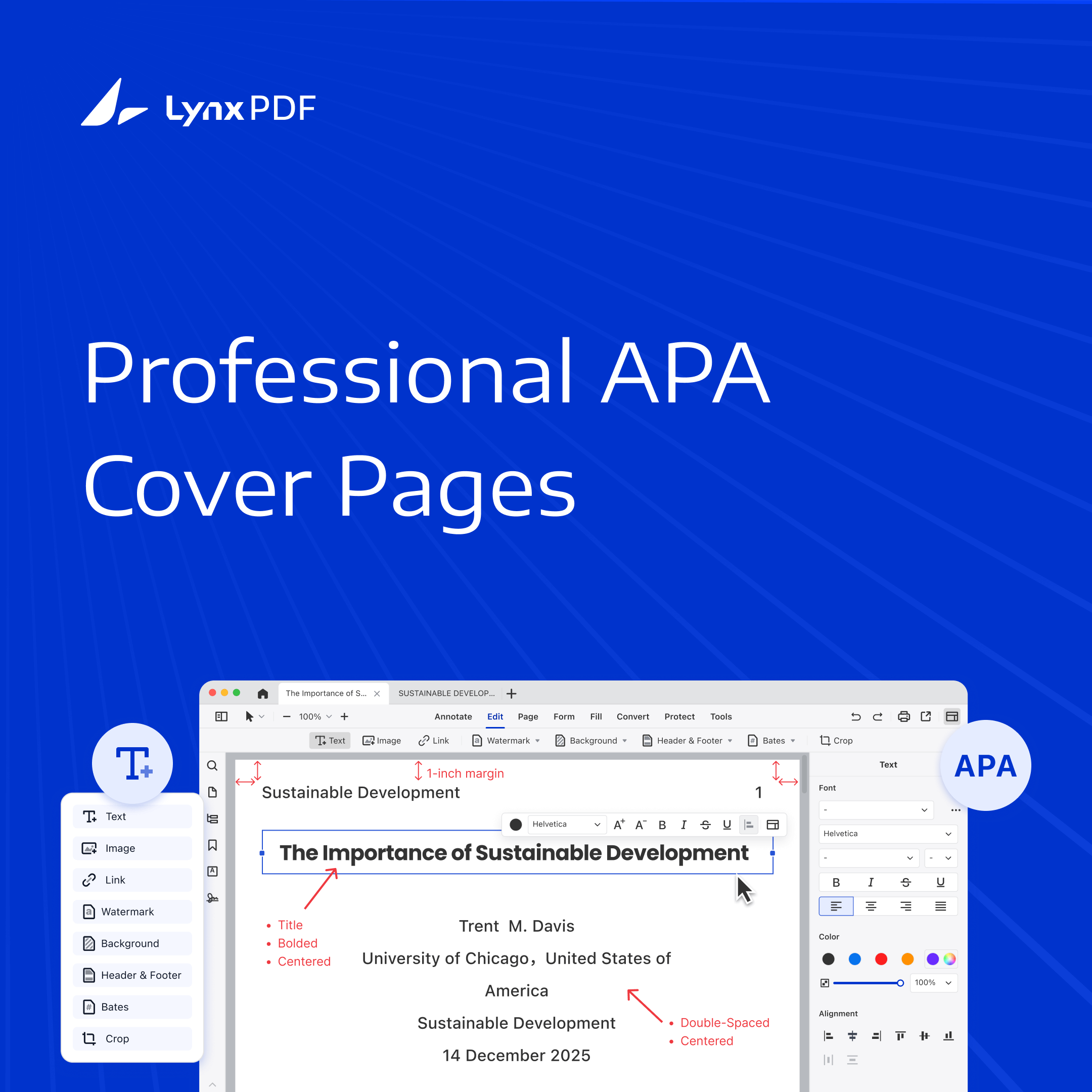
Creating an APA format cover page is essential for academic and professional documents, as it ensures a polished and credible presentation. However, formatting it correctly can often be time-consuming and confusing.


LynxPDF simplifies the process, providing tools to create, format, and customize your APA cover page effortlessly. Whether you’re a student or a professional, LynxPDF makes achieving compliance with APA guidelines quick and easy.
Understanding the APA Format Cover Page
An APA format cover page is the first impression of your academic or professional document. It provides essential details about the paper and ensures consistency with APA style guidelines. A well-structured cover page enhances the credibility of your work and reflects attention to detail.
The key elements of an APA cover page include:
- Title of the Paper: Bold and centered, summarizing the topic concisely.
- Author’s Name: Your full name, centered below the title.
- Institutional Affiliation: The name of your school, university, or organization.
- Course Information: For academic papers, include the course name or number.
- Instructor’s Name: The name of the professor or supervisor.
- Submission Date: The due date of the paper in a consistent format (e.g., Month Day, Year).

Each element must follow APA guidelines, including font (e.g., Times New Roman, 12 pt), spacing (double-spaced), and alignment (centered). LynxPDF makes it easy to align these elements precisely, ensuring a professional look every time.
Using LynxPDF with Your Own APA Title-Page Template
Start with an APA 7 student title-page PDF supplied by your institution, or prepare one in your word processor and export it to PDF. Open the PDF in LynxPDF to update editable text and review the layout. If the template contains form fields, fill them with your details.

 Admin Console
 Custom Business Stamps
 System Integration
 Digital Signatures
Use LynxPDF to update the details in your PDF template and review the finished page.
Step-by-Step Guide to Editing an APA 7 Student Title Page
Use your institution’s title-page template as a starting point. The following steps help you update the details and review the page before submission.
Step 1: Open Your Title-Page Template
Open LynxPDF and open your institution’s APA 7 student title-page PDF. If you prepare the page in a word processor, use 1-inch margins and export it to PDF before opening it in LynxPDF.
Step 2: Add the Title of Your Paper
Use the text editing tools to update the title. Keep the title bold and centered, three to four lines below the top of the title page.
Step 3: Add Required Details
Leave one double-spaced blank line between the title and your name. Below the title, include the following details, each on a separate centered, double-spaced line:
- Your Full Name: Enter your full name (e.g., John Doe).
- Institutional Affiliation: Add your department and institution (e.g., Department of Psychology, University of Example).
- Course Information: Specify the course name or code (e.g., ENG 101: Introduction to Academic Writing).
- Instructor’s Name: Add your instructor’s name (e.g., Professor Jane Smith).
- Submission Date: Write the submission date in the format "November 20, 2024."
This structure ensures your APA cover page contains all essential elements in a clear, professional format. Keep all text centered and consistent in style for a polished appearance.
Step 4: Format the Page
After adding the necessary details, compare the page with your institution’s template and APA guidance:
- Font Style and Size: Use an APA-accepted font consistently, such as 12-point Times New Roman, 11-point Arial, or 11-point Calibri. Keep the title bold.
- Text Alignment: Use the alignment tools to center all text elements on the page for a polished and professional look.
- Line Spacing: Check that the text is double-spaced. Make paragraph-layout changes in the source template or word processor before exporting to PDF.
- Text Color: Verify that the text color is set to black, which is the standard for academic documents.
Include page number 1 in the upper-right header. A running head is normally unnecessary for student papers unless requested by the instructor. Review the page against APA title-page guidance and your assignment requirements.
Step 5: Save Your Document
After finalizing your APA cover page, save your work to preserve the formatting. Click on the "File menu" and select "Save As", choose a location, and give your document a clear name.
Creating a polished APA cover page is quick and straightforward with LynxPDF.

Need to add page numbers to your PDF? Check out our guide on how to add Page Numbers to a PDF.
Pro Tips for APA Formatting
Creating an APA-compliant document requires attention to detail and a clear understanding of formatting guidelines. By adhering to these best practices, you can ensure your work meets academic and professional standards with ease.
1. Use an APA-Compliant Font and Size
Stick to Times New Roman, 12 pt font, as recommended by APA guidelines. Ensure uniformity in font size across all sections of your document, including headings, body text, and references.
2. Double-Space Your Document
APA formatting requires double-spacing throughout the document, including the title page, abstract, body, and references. This spacing enhances readability and maintains a consistent, professional appearance.
3. Maintain 1-Inch Margins
Set your document's margins to 1 inch on all sides. This standard ensures proper alignment and balance in your document's layout.
4. Include a Running Head
For professional papers, add a running head at the top of each page. This short title should align with the left margin, while the page number appears on the right. LynxPDF makes adding headers and page numbers straightforward.
5. Follow the Title Page Format
The title page must include the paper’s title, your name, institutional affiliation, course details, instructor’s name, and submission date. Ensure each element is centered and formatted correctly, as outlined in APA guidelines.
6. Consistently Indent Paragraphs
Start each paragraph with a 0.5-inch indent. This detail adds clarity and structure to your writing, improving the document’s overall readability.
7. Create a Proper Reference List
List all cited sources alphabetically on the reference page. Use a hanging indent for each entry, where the first line is flush with the margin, and subsequent lines are indented by 0.5 inches.
8. Proofread for Accuracy
Review your document to ensure all formatting, citations, and references are accurate and consistent with APA guidelines. Pay special attention to punctuation, capitalization, and spacing.
Creating an APA-compliant cover page doesn’t have to be a challenge. With LynxPDF, you can streamline the process.


